
- What MCP Gives Codex
- Method 1: The Codex CLI (Two Commands)
- Method 2: The Desktop App (No Terminal)
- Worked Example: What a Good MCP Server Adds
- Troubleshooting
- FAQs
- Related Reading
Codex is a strong coding agent with a stock limitation: out of the box, it can only touch what's on your machine. MCP (Model Context Protocol) is how you fix that — it's the standard plug through which Codex reaches databases, browsers, docs, deployment targets, and remote services.
There's a persistent bit of folklore that setting up MCP in Codex means hand-editing TOML config files. That was briefly true and is now mostly obsolete: the CLI has proper codex mcp commands, and the desktop app has a settings UI. Both take under two minutes. This guide covers both, then shows what a genuinely capable MCP server changes about how you use Codex.
What MCP Gives Codex
An MCP server exposes tools — functions the model can call. Connect one and Codex's abilities extend to whatever the server offers: query this database, fetch this documentation, deploy this build, run this batch job. Codex discovers the tools automatically after connection and decides when to use them based on your instructions.
There are two kinds of servers. Local (STDIO) servers run as a process on your machine — fine for tools that operate on local resources. Remote (Streamable HTTP) servers live at a URL — nothing to install, nothing to keep running, and they follow you across machines. For anything infrastructure-shaped, remote is the better default.
Method 1: The Codex CLI (Two Commands)
Adding a remote MCP server from the terminal is one add and one login. Using the Matagi MCP server as the example:
codex mcp add matagi --url https://mcp.matagi.ai/mcp
codex mcp login matagi
The first command registers the server. The second opens a browser window for OAuth — sign in, approve access, done. No API keys to create, copy, or leak into a dotfile; the OAuth flow (2.1 + PKCE, with dynamic client registration) handles identity, and tokens refresh automatically.
Verify with:
codex mcp list
You should see matagi with its tools available. From the next session onward, Codex can call them.
Method 2: The Desktop App (No Terminal)
If you work in the ChatGPT/Codex desktop app, the whole flow is in Settings.
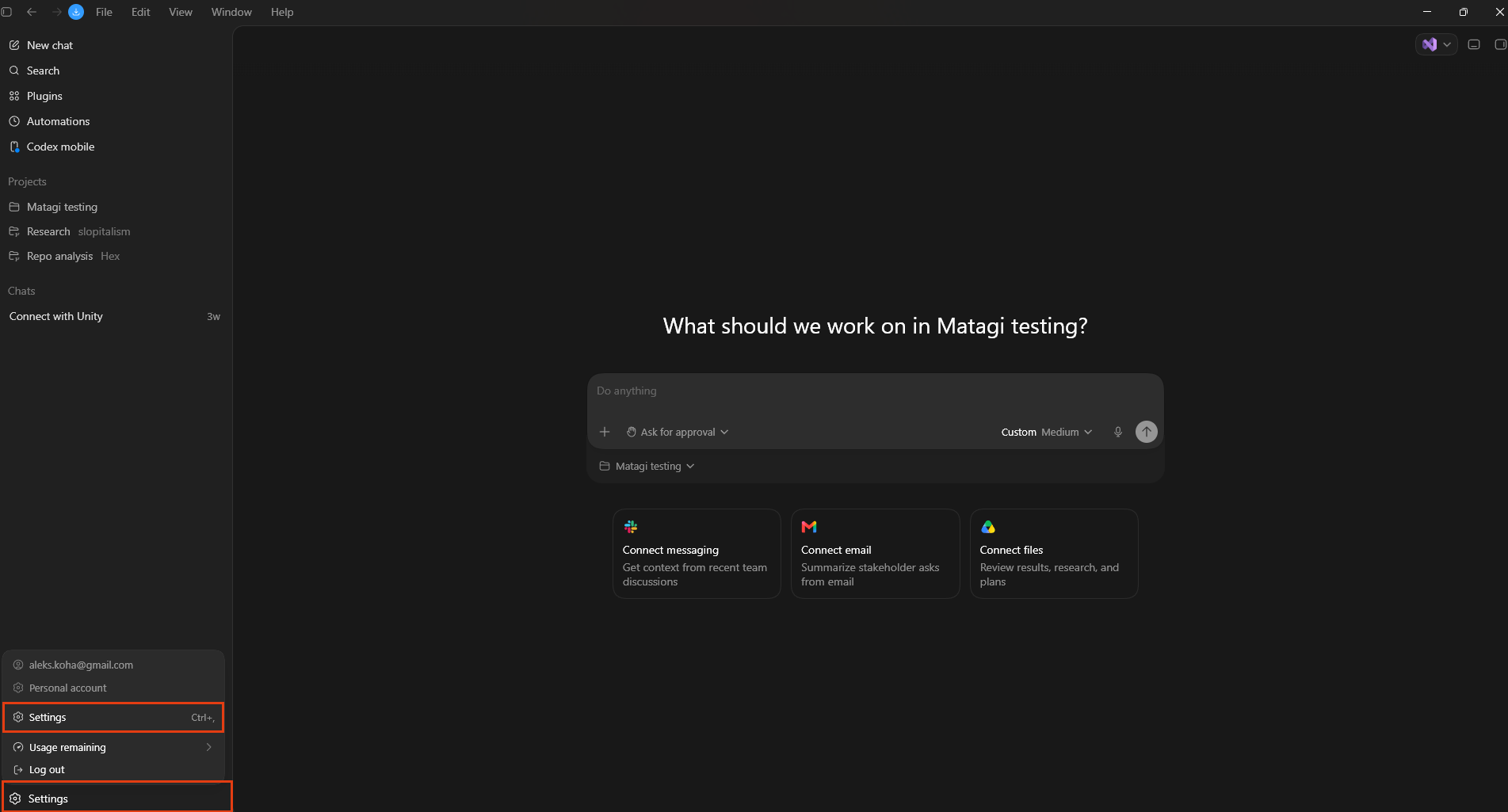
Step 1 — Open Settings. In the desktop app, click your account in the bottom-left corner and choose Settings.
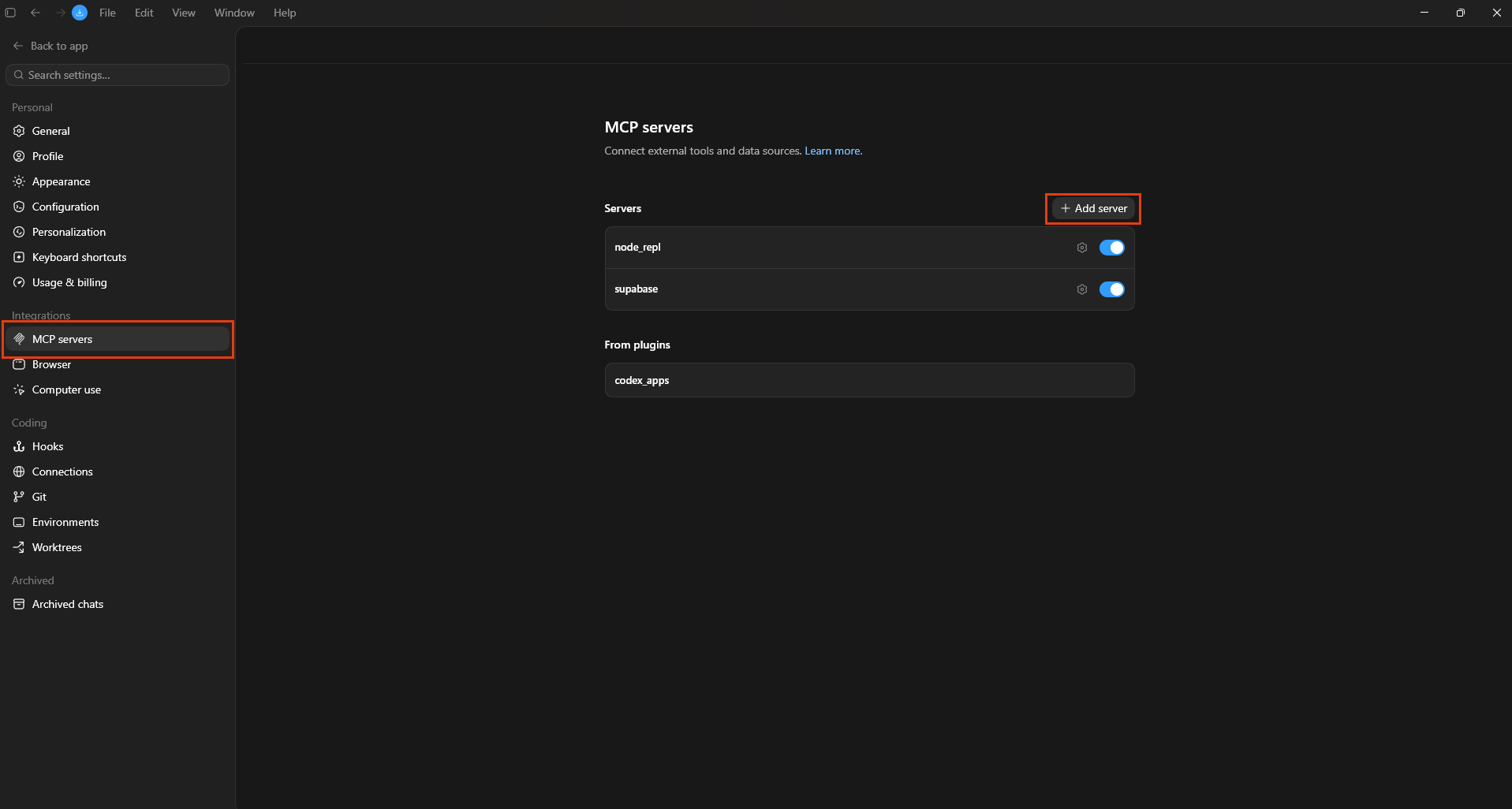
Step 2 — Go to MCP servers and add one. Under Integrations → MCP servers, click + Add server. Any servers you already have (and any that came from plugins) are listed here with on/off toggles.
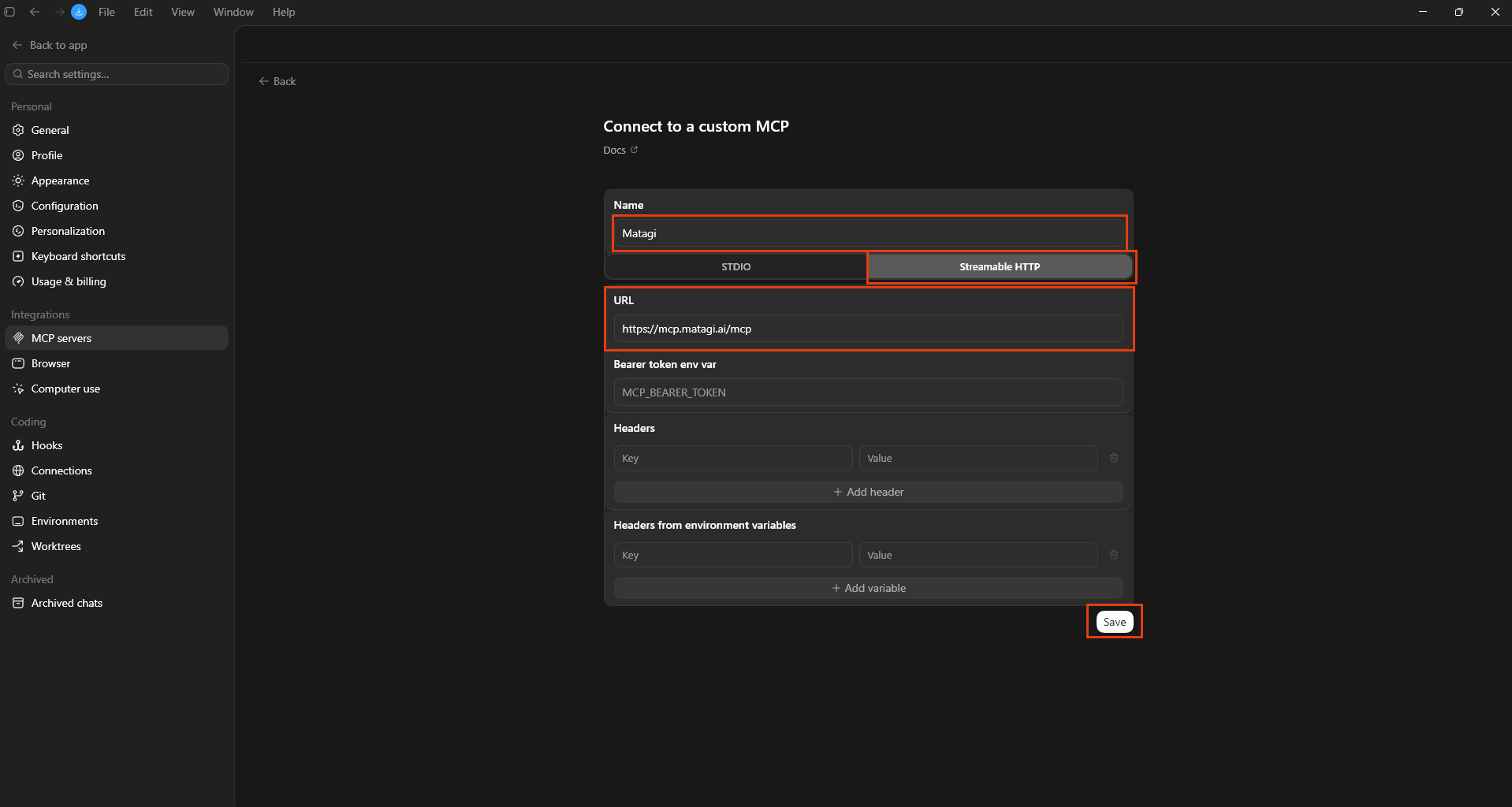
Step 3 — Fill in the connection. In the "Connect to a custom MCP" form: name it Matagi, select the Streamable HTTP tab (not STDIO — this is a remote server), and paste the URL:
https://mcp.matagi.ai/mcp
Leave the bearer-token and header fields empty — authentication happens via OAuth in the next step. Click Save.
Step 4 — Authenticate. The server now appears in your list with an Authenticate button. Click it, sign in with your work email in the browser window that opens, and approve access. If you're new to Matagi, a workspace is created for you with trial credit — there's no separate signup step.
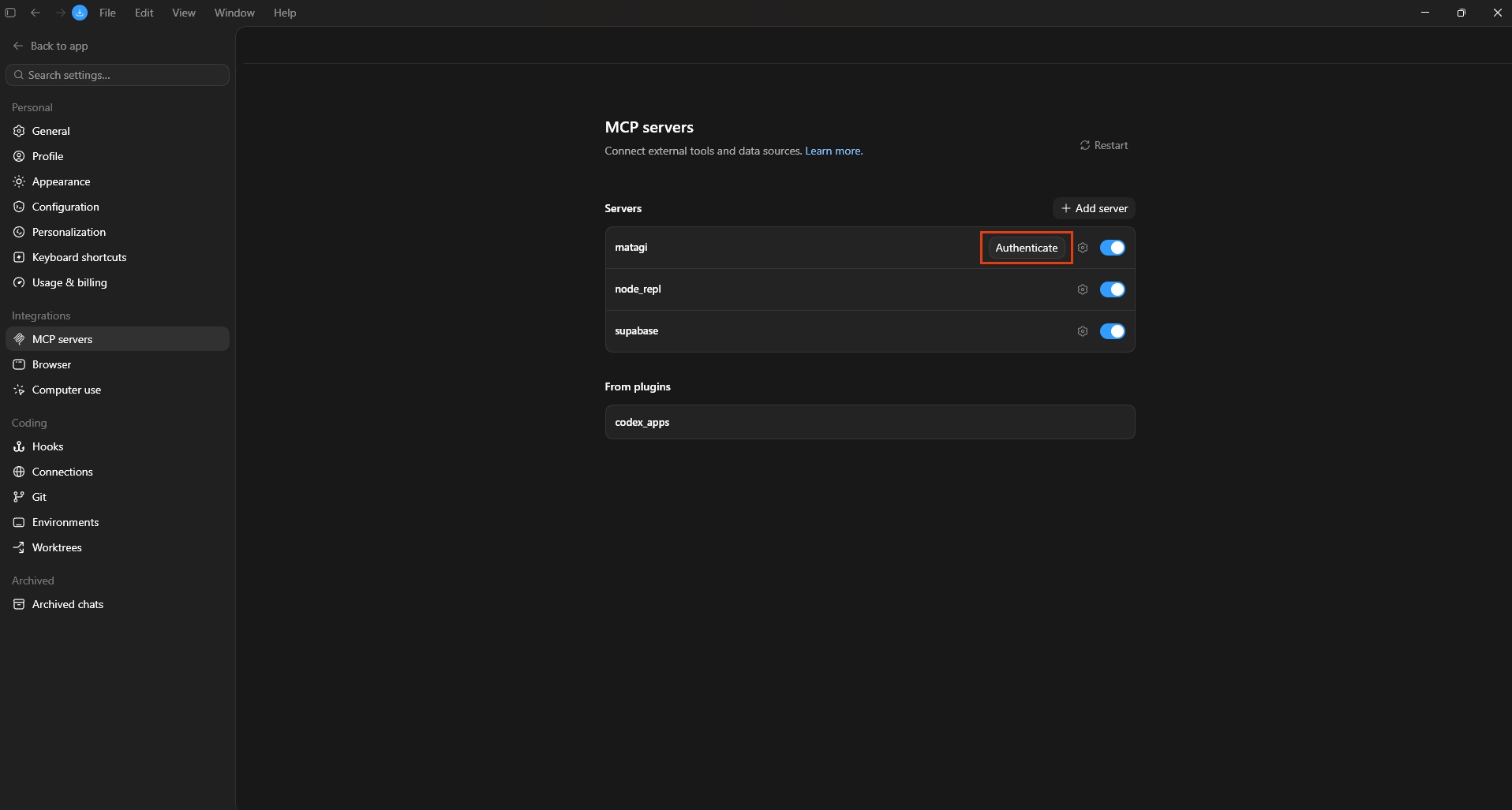
That's it. The tools are live in your chats and Codex sessions.
Worked Example: What a Good MCP Server Adds
What you connect matters more than how. Most MCP servers make Codex better at reading — docs, issues, schemas. The bigger unlock is a server that lets Codex finish the job.
Here's the gap: Codex can write a complete application — and then it stops, because deploying it needs servers, a database, credentials, and wiring that live outside the editor. You become the DevOps intern for your own AI.
With the Matagi server connected, that last mile becomes tool calls. Ask Codex to build something real — "build a waitlist API with a Postgres database behind it and deploy it" — and it can provision the database (isolated, per-workspace), deploy the function, register a schedule if the job recurs, and hand you a working URL. External services the app touches go through Matagi's proxy, so API keys and OAuth tokens are injected server-side and never appear in the generated code — which also means they never land in your repo.
One connection, and Codex goes from "writes code you then have to ship" to "ships."
Troubleshooting
The server shows but tools don't appear. Restart the session (or use the Restart control in the MCP servers panel). Tool lists are fetched at session start.
OAuth window never opens (CLI). Run codex mcp login matagi again; some terminals swallow the browser launch. The URL is also printed so you can open it manually.
"STDIO vs Streamable HTTP" confusion. If a guide tells you to add a command and args, it's describing a local server. Remote servers like Matagi only need the URL and the Streamable HTTP transport.
Old TOML instructions. Editing config.toml still works but is unnecessary — codex mcp add writes the same config for you, without syntax risk.
FAQs
Does adding MCP servers to Codex cost anything? The Codex side is free — MCP support is built in. Individual servers have their own pricing; Matagi starts new workspaces with trial credit.
Can I connect the same MCP server to Codex and Claude Code? Yes. That's the point of remote MCP: the same endpoint (and the same workspace behind it) works from Codex, Claude, Cursor, or any MCP client. Switch editors, keep everything.
How many MCP servers should I connect? Fewer than you think. Every server's tool descriptions consume context. Two or three servers you actually use beat ten you don't.
Is it safe to give Codex infrastructure tools? Matagi scopes everything to your workspace, keeps credentials in a server-side proxy (never in code or model context), and logs every action with a full audit trail. Review what the agent built before pointing real traffic at it — verify, don't trust.
Related Reading
- How to Connect ChatGPT to an MCP Server (Developer Mode)
- Claude Scheduled Tasks: How to Run Claude on a Schedule
- Postgres MCP Server: Give Your AI a Database Without the Setup
Give Codex hands: connect the Matagi MCP server — codex mcp add matagi --url https://mcp.matagi.ai/mcp, sign in, and start shipping from your editor.
Build your first AI agent free
Describe what you want done in plain English. Matagi provisions the infrastructure, wires the integrations, and deploys it.
Get started